UI
Scenes that exercise the UI module: a controller-friendly menu built from layers and UI elements, and a "controls" screen built from device layouts.
Menu navigation
The reference scene for the UI module - a menu wired up with usage of core components Layer, LayerNavigator, LayerNavigation, and every shipped UIElement type: ActionButtonElement, ActionSliderElement, ActionToggleElement, ActionScrollbarElement, and ActionScrollViewElement. It covers the common patterns you'll repeat across your own menus: directional navigation across a grid, a focus-driven feedback hook, and opening / closing panels.
| Scene | Assets/UpscaleSDK/Samples/UI/Base/UIExampleScene.unity |
|---|---|
| Scripts | DemoWindow.cs, DynamicGridDemo.cs, UIFeedbackDemo.cs |
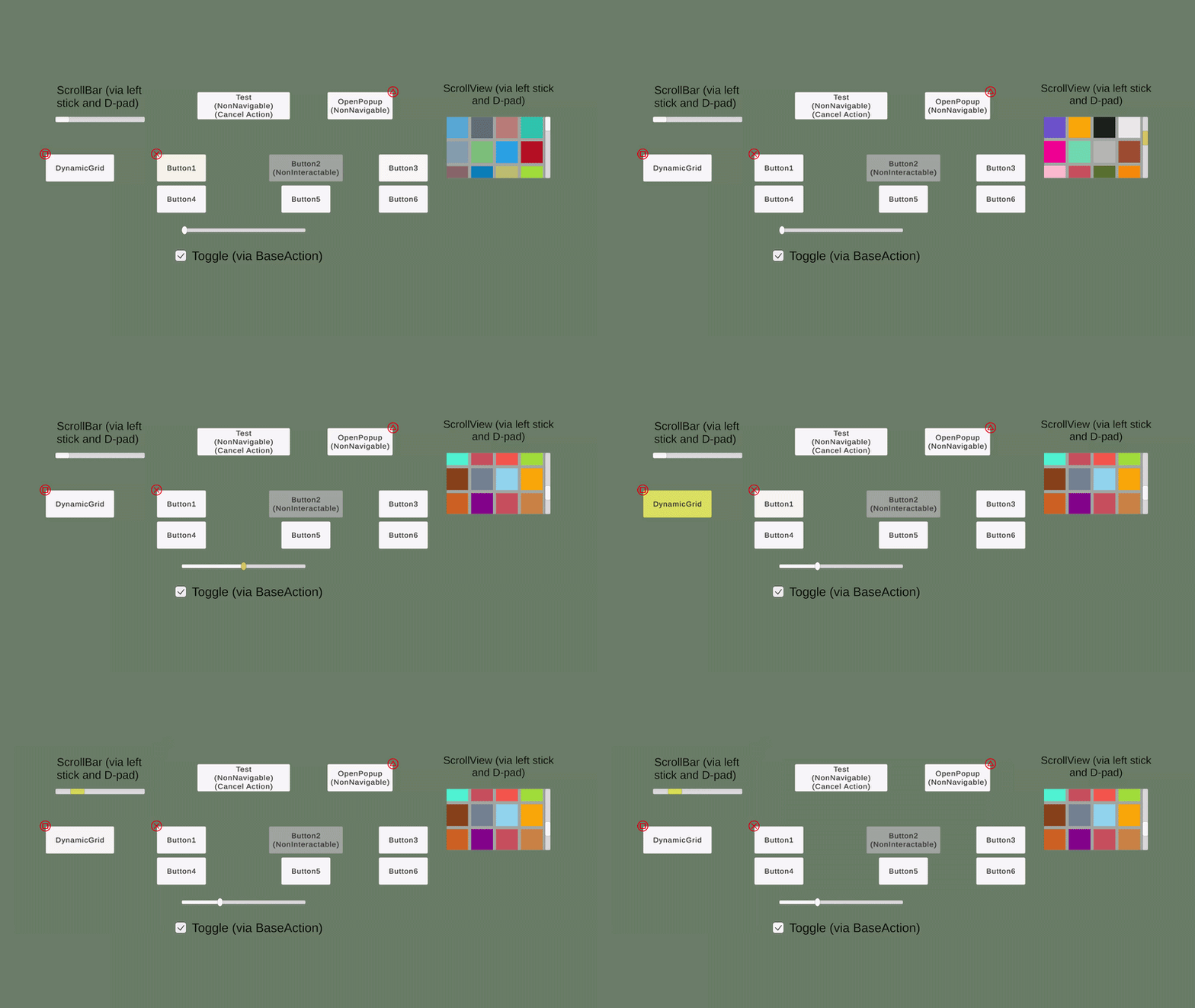
What it demonstrates
- A
Layer+LayerNavigator+LayerNavigationpanel built from regular UGUI components - Two-axis navigation through a grid (
DynamicGridDemo) -LayerNavigationtransitions wired horizontally and vertically - Reacting to focus changes with
UIElement.OnFocusChangedto drive visual feedback (UIFeedbackDemo) - A simple panel open/close pattern with
DemoWindow.Open()/DemoWindow.Close() - Usage of the three new element types -
ActionToggleElement,ActionScrollbarElement,ActionScrollViewElement- alongsideActionButtonElementandActionSliderElement
How to run
- Open
UIExampleScene.unity. - Press Play.
- Use the gamepad's left stick / D-pad to move between elements. Apply on the focused element interacts with it; Cancel closes a sub-panel.
Warning
Make sure your UpscaleSDKConfig has the per-controller GamepadIconsSet references filled in (see Manual → Input → Glyphs).
Device layout
A "controls" screen that shows the same set of demo actions in four ways: drawn on the connected gamepad, on the keyboard, on the mouse, and as a flat list of control hints. All four views read one shared DeviceLayoutActions list.
| Scene | Assets/UpscaleSDK/Samples/UI/DeviceLayout/DemoDeviceLayout.unity |
|---|---|
| Scripts | DemoGamepadLayoutRowView.cs, DeviceViewChanger.cs |
| Prefabs | DemoRowIconLeft.prefab, DemoRowIconRight.prefab, DemoLineOragne.prefab |
| Actions | Actions/DemoAction1.asset … Actions/DemoAction5.asset |
What it demonstrates
- One
DeviceLayoutActionscomponent (PlayerActions) shared by every view - each view only shows the actions that have a source for its device GamepadLayoutViewwithSidesLineRouter- the image and glyphs follow the connected controller modelKeyboardLayoutViewandMouseLayoutViewwithUnderlineLineRouterDeviceLayoutListViewin automatic mode - gamepad icons when a gamepad is connected, keyboard and mouse icons otherwise- Different Side Wedge Angle values per view: the keyboard view uses
90, so all rows go to the left and right of the keyboard - A minimal
DeviceLayoutRowViewimplementation with anImageand a TextMeshPro label (DemoGamepadLayoutRowView) - Left- and right-facing row prefabs, and a
UIPolylineline prefab
How to run
- Open
DemoDeviceLayout.unity. - Press Play.
- Hold F1 + F2 on the keyboard, or LB + RB (L1 + R1, L + R) on the gamepad, for 2 seconds to switch to the next view. The progress bar at the bottom fills while you hold, and the title shows the active view.
- Connect or disconnect a gamepad - the views update immediately.
Tip
You can also inspect the layouts without entering Play mode - the views draw in edit mode, and changes to their Inspector settings apply immediately.
Warning
Device views need icon sets with a Device Image and placed anchors in UpscaleSDKConfig (see Manual → Input → Authoring icon sets). The sets in UpscaleSDK-Extras.unitypackage are ready to use.
See Manual → UI → Device layouts for the full component reference.