UI
The UI module is a controller-friendly menu navigation system. Each screen is a Layer, layers contain UIElements (buttons, sliders, ...) and a Navigation graph that defines which element is reached by pressing up/down/left/right on the gamepad. Only one Layer is active at a time, and switching between them is a single static call. The module is intentionally lightweight since it does not draw anything, animate anything, or own a UI prefab. You build your panels with regular Unity UGUI components and the module wires up gamepad focus and directional traversal on top.
Features
- Layer-based screens - one active layer at a time.
- Directional navigation graph - author per-element transitions for N / S / E / W
- Gamepad friendly - driven by
InputActionDefinitionassets, glyph-aware out of the box - Component-based authoring - drop a
Layeron a panel,LayerNavigator,LayerNavigationnext to it. - Built-in element types -
ActionButtonElement,ActionSliderElement,ActionToggleElement,ActionScrollbarElement,ActionScrollViewElement - Pre-built input definitions -
UiButtonApply,UiButtonCancel,UiSlider,UiLayerNavigationshipped as assets - No bespoke prefabs - works with Canvas / RectTransform layout you already have
- Device layouts - "controls" screens that draw a gamepad, keyboard, or mouse with labelled actions and connector lines, plus flat control-hint lists
Core concepts
| Term | What it is |
|---|---|
Layer |
MonoBehaviour attached to a your root. Has a unique Key. Self-registers with UILayersManager. |
LayerNavigator |
MonoBehaviour that reads directional input each frame and moves focus between elements |
LayerNavigation |
MonoBehaviour that holds the navigation graph: a default element + array of Transition |
Transition |
Serializable record: an origin UIElement and its North / South / West / East neighbours |
UIElement |
Abstract base for items. Tracks IsInFocus, IsEnabled, and the parent Layer |
ActionButtonElement |
UIElement for work with UGUI Button |
ActionSliderElement |
UIElement for work with UGUI Slider |
ActionToggleElement |
UIElement for work with UGUI Toggle |
ActionScrollbarElement |
UIElement for work with UGUI Scrollbar |
ActionScrollViewElement |
UIElement for work with UGUI ScrollRect (Scroll View) |
UILayersManager |
Static manager that tracks all registered layers and exposes ActivateLayer(...) |
ActivateLayerTrigger |
Helper component to activate a layer automatically on a Unity lifecycle hook |
Info
There is no UI stack or history in this module - ActivateLayer(X) simply deactivates the previously active layer and activates X. If you need a back-stack, maintain it in your own code on top of UILayersManager.
Quick start
Build a main menu with two buttons and one slider:
- Create the panel. Make a
Canvas → Panelwith twoButtonchildren (Play, Quit) and oneSliderchild (Volume). - Add the
Layercomponent to the panel root and setKey = "MainMenu". - Add a default UiElement componnent to each
Button/Slider:- On each button child, add
ActionButtonElementand drop the shippedUiButtonApplydefinition into its bool-action slot. Also assign your button. - On the slider child, add
ActionSliderElementand dropUiSliderdefinition into its Vector2 slot. Also assign your slider. - On each slider/button Assign a
Layerwich you create before.
- On each button child, add
- Add
LayerNavigationto the panel root. Set theDefault Elementto the Play button. - Author transitions on
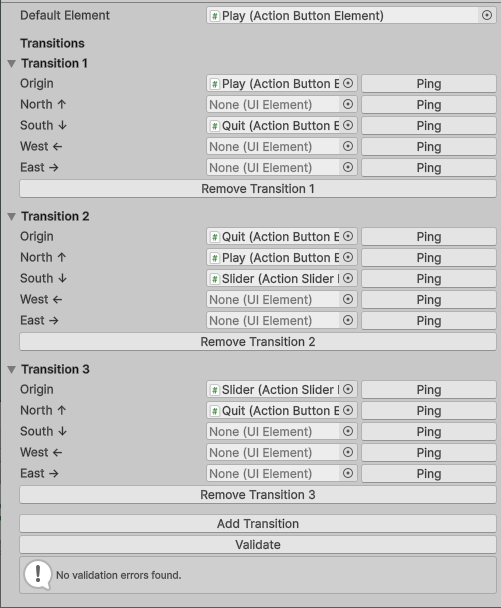
LayerNavigation: each entry has anOriginelement and one neighbour per direction. E.g. (Origin: Play, South: Quit). Add 3 transitions (Play, Quit, Volume origins) - Add the
LayerNavigatorcomponent next toLayerNavigation. Assign the shippedUiLayerNavigationdefinition asset to its input definition slot. Assign aLayerandLayerNavigationwich you create before - Activate the layer at runtime Drop an
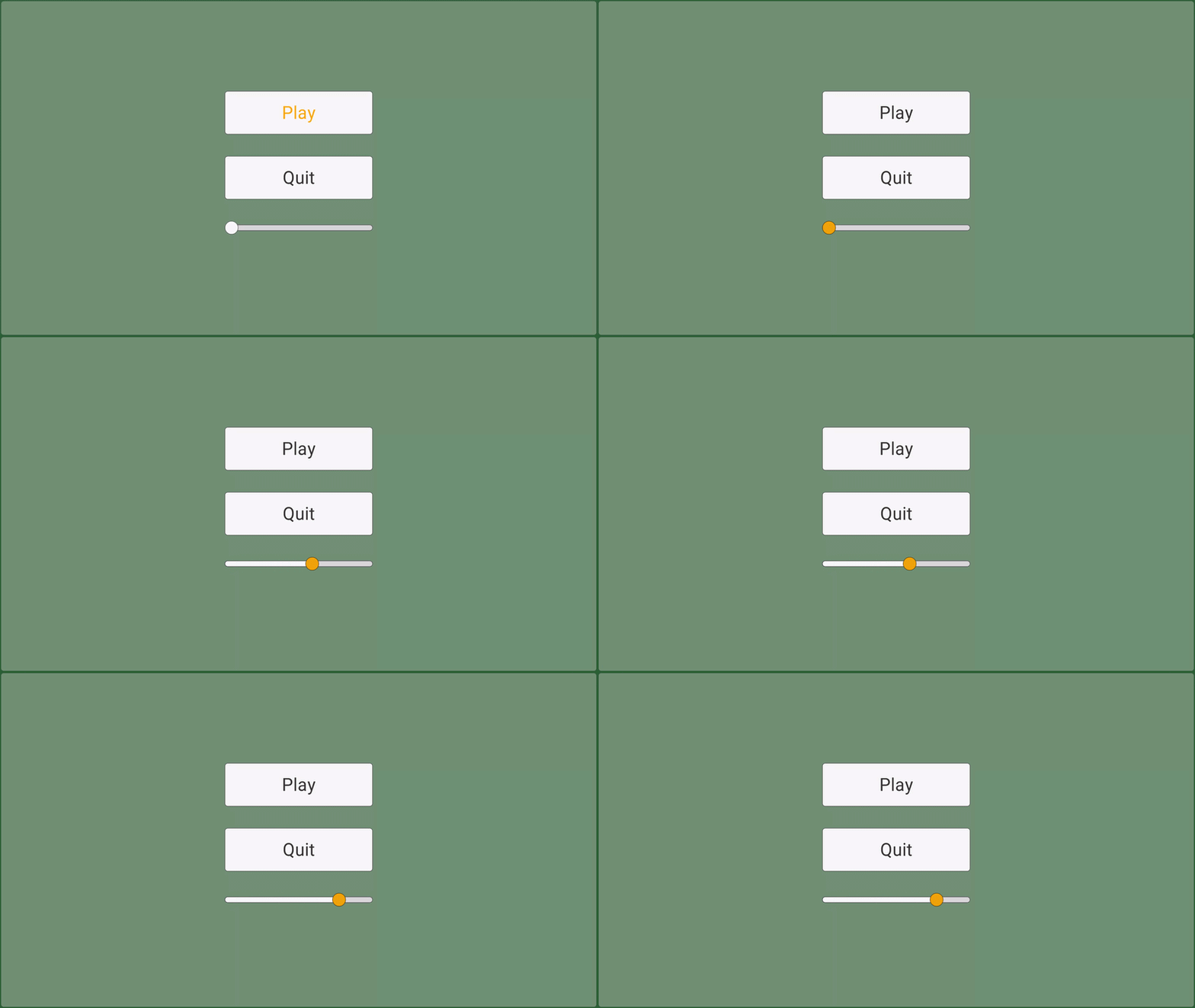
ActivateLayerTriggerto the panel root withTriggerType = Start. Next, assing the target Layer using either a direct reference or its unique string key. - Add any visual feedback UI feedback helps players clearly identify which element currently has focus (via sounds, particles, outlines, or color changes). For this test setup, we will use a simple color swap. Add the
UIElementFeedbackscript to your ui elements, and assign the target Graphic in the Inspector:- For Buttons: Assign the child Text.
- For Slider: Assign the Handle graphic.
public class UIElementFeedback : MonoBehaviour
{
    [SerializeField] private Graphic graphic;
    private Color highlightColor = Color.orange;

    private Color originalColor;
    private UIElement uiElement;

    private void Awake()
    {
        uiElement = GetComponent<UIElement>();
        originalColor = graphic.color;
    }

    private void OnEnable() => uiElement.OnFocusChanged += OnFocusChanged;
    private void OnDisable() => uiElement.OnFocusChanged -= OnFocusChanged;
    private void OnFocusChanged(bool oldValue, bool newValue) => graphic.color = newValue ? highlightColor : originalColor;
}
Authoring a Layer
The core components below sit on the root and make it a functional UI layer.
Layer
Add the Layer component to the view root and give it a unique Key in the Inspector. That is all that's required - the component registers itself with UILayersManager as soon as the scene starts and removes itself when the GameObject is destroyed, so you never wire it up by hand.
| Field | What it does |
|---|---|
Key |
Unique string used by UILayersManager.ActivateLayer("...") lookups |
IsEnabled |
Read-only current state - flipped by activation, not by you |
If you need to toggle a layer from script (without going through UILayersManager), call SetEnabled(bool) on the Layer reference.
LayerNavigator
Add the LayerNavigator component next to the view root. It reads directional input each frame and moves focus between the elements declared in LayerNavigation.
In the Inspector:
- Drop a
Vector2ActionDefinitioninto its input slot (the shippedUiLayerNavigation.assetworks out of the box). - Assign the
Layerand theLayerNavigationreferences.
The first time the layer activates, the navigator focuses the default element from LayerNavigation automatically - you do not need to focus anything in code.
| Event | Fires |
|---|---|
OnSelectElement(UIElement prev, UIElement next) |
Focus moved from prev to next |
LayerNavigation
LayerNavigation defines how focus moves between UI elements when the player presses a navigation input (Up, Down, Left, Right) via LayerNavigator. This component holds an array of Transition and a default focus element. Empty slots mean "no neighbour in that direction" - input in that direction is ignored. You configure the graph directly in the Inspector:
| Transition | Origin | North | South | West | East |
|---|---|---|---|---|---|
| Transition 1 | Play |
─ | Quit |
─ | ─ |
| Transition 2 | Quit |
Play |
Volume |
─ | ─ |
| Transition 3 | Volume |
Quit |
─ | ─ | ─ |
Info
If no default element is assigned, LayerNavigation automatically uses the first transition origin as the default element.
Code-based alternatives, this is especially useful for procedurally generated menus or dynamic UI layouts:
navigation.SetDefaultElement(playButton);
navigation.SetTransitions(new[] {
    new Transition(
        origin: playButton,
        north: null,
        south: quitElement,
        west: null,
        east: null),

    new Transition(
        origin: quitElement,
        north: playButton,
        south: volumeElement,
        west: null,
        east: null),

    new Transition(
        origin: volumeElement,
        north: quitElement,
        south: null,
        west: null,
        east: null),
});
Activating layers
When Layer is wired up you need to actually switch to it at runtime. There are two ways.
From code, via UILayersManager:
UILayersManager.ActivateLayer("MainMenu");          // by key
UILayersManager.ActivateLayer(settingsLayer);       // by reference

Layer current = UILayersManager.CurrentActiveLayer; // currently active layer (or null)
ActivateLayer deactivates whatever layer was previously active and activates the new one. There is no stack, so calling it again with the same key is a no-op.
Declaratively, via ActivateLayerTrigger:
For the common cases - "activate this layer on Start", "switch to Settings when the Settings button is clicked" - drop an ActivateLayerTrigger component instead of writing code.
| Field | Values |
|---|---|
TriggerType |
Awake, Start, OnEnable, OnDisable, OnDestroy, Manual |
FindType |
Key (resolve the target Layer by its Key string) or Reference (direct slot) |
With TriggerType = Manual, fire it from code or button OnClick event:
UI Elements
The components that live on the focusable items inside a layer (buttons, sliders, and your own subclasses).
UIElement (base)
UIElement is the abstract base class for any focusable item in a layer. It tracks focus / enabled state, exposes the events you'll use to wire up visual feedback, and provides one extension point (Interact()) for subclasses.
| Member | Kind | What it does |
|---|---|---|
IsInFocus |
property | True when the navigator currently has focus on this element |
IsEnabled |
property | True when the element is interactable |
Layer |
property | The parent layer this element belongs to |
SetFocus |
method | Programmatically focus / unfocus |
SetEnabled |
method | Programmatically enable / disable |
| Event | Fires |
|---|---|
OnInteracted |
Subclass called Interact() - e.g. button clicked |
OnFocusChanged(bool old, bool current) |
Focus state changed |
OnEnabledChanged(bool old, bool current) |
Enabled state changed |
You can subclass UIElement for custom element types - the UIElementFeedback snippet in Quick start is a minimal example that uses OnFocusChanged to drive a colour swap.
ActionButtonElement
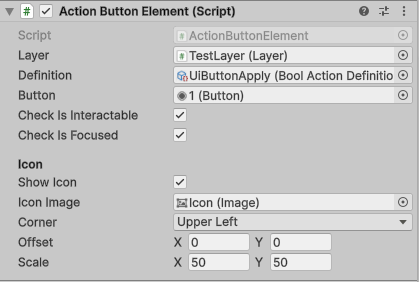
Works with default UGUI Button. Listens to a BoolActionDefinition (usually UiButtonApply) and invokes the button's onClick when that input performs. Optionally renders the glyph for the bound input using the currently connected device's icon set from UpscaleSDKConfig.
| Inspector field | Type | Notes |
|---|---|---|
| Action definition | BoolActionDefinition |
Usually the shipped UiButtonApply asset |
| Button | UnityEngine.UI.Button |
Target UGUI button on the same GameObject |
| Check Is Interactable | bool |
If true, ignore input when the button is not interactable |
| Check Is Focused | bool |
If true, only react while the element has focus |
| Show Icon | bool |
Toggles glyph rendering |
| Icon Image | Image |
Target UGUI Image used to draw the glyph |
| Corner | Corner |
Anchor corner for Icon Image (or Free to keep authoring anchors) |
| Offset | Vector2 |
Extra pixel offset applied to Icon Image |
| Scale | Vector2 |
sizeDelta applied to Icon Image |
| Layer | Layer |
Parent layer reference |
The glyph auto-refreshes on device hot-plug: the element listens to UPSInput.OnDeviceAdded / OnDeviceRemoved and picks the sprite for the currently connected device (gamepad, keyboard, or mouse).
ActionSliderElement
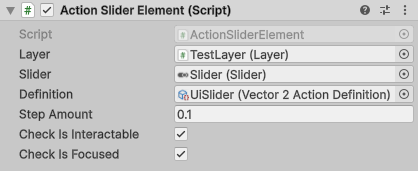
Works with default UGUI Slider. Reads a Vector2ActionDefinition (usually UiSlider) and nudges the slider by the configured step per direction tick.
| Inspector field | Type | Notes |
|---|---|---|
| Action definition | Vector2ActionDefinition |
Usually the shipped UiSlider asset |
| Slider | UnityEngine.UI.Slider |
Target UGUI slider on the same GameObject |
| Step amount | float |
How much to nudge per tick of input |
| Layer | Layer |
Parent layer reference |
ActionToggleElement
Works with default UGUI Toggle. Flips Toggle.isOn when the bound BoolActionDefinition performs.
| Inspector field | Type | Notes |
|---|---|---|
| Toggle | UnityEngine.UI.Toggle |
Target UGUI toggle on the same GameObject |
| Definition | BoolActionDefinition |
The input that toggles the element (usually UiButtonApply) |
| Check Is Interactable | bool |
If true, ignore input when the toggle is not interactable |
| Check Is Focused | bool |
If true, only react while the element has focus |
ActionScrollbarElement
Works with default UGUI Scrollbar. Reads a Vector2ActionDefinition and nudges the scrollbar value. The element automatically picks the input axis that matches the scrollbar's direction (horizontal → X, vertical → Y) and flips the sign so positive input always drives the value toward 1. If Scrollbar.numberOfSteps is greater than 1, the resulting value snaps to the nearest step.
| Inspector field | Type | Notes |
|---|---|---|
| Scrollbar | UnityEngine.UI.Scrollbar |
Target UGUI scrollbar on the same GameObject |
| Definition | Vector2ActionDefinition |
The navigation input driving the scrollbar |
| Step Amount | float |
How much to change value per tick of input |
| Check Is Interactable | bool |
If true, ignore input when the scrollbar is not interactable |
| Check Is Focused | bool |
If true, only react while the element has focus |
ActionScrollViewElement
Works with default UGUI ScrollRect (Scroll View). Reads a Vector2ActionDefinition and shifts ScrollRect.normalizedPosition by value * stepAmount per tick, respecting the horizontal / vertical flags on the scroll rect.
| Inspector field | Type | Notes |
|---|---|---|
| Scroll Rect | UnityEngine.UI.ScrollRect |
Target UGUI Scroll View on the same GameObject |
| Definition | Vector2ActionDefinition |
The navigation input driving the scroll |
| Step Amount | float |
How much to change normalizedPosition per tick |
| Check Is Focused | bool |
If true, only react while the element has focus |
Input integration
The UI module does not talk to BaseGamepadActionSet (or any pre-made set) directly. Instead, every input-driven component holds an InputActionDefinition<T> slot - the ScriptableObject authoring surface described in Manual → Input → Action Definitions.
| Component | Definition type | Shipped default asset |
|---|---|---|
LayerNavigator |
Vector2ActionDefinition |
UiLayerNavigation.asset |
ActionButtonElement |
BoolActionDefinition (Apply) |
UiButtonApply.asset |
ActionButtonElement |
BoolActionDefinition (Cancel) |
UiButtonCancel.asset |
ActionButtonElement |
BoolActionDefinition (Base) |
UiButtonBase.asset |
ActionButtonElement |
BoolActionDefinition (Extra) |
UiButtonExtra.asset |
ActionSliderElement |
Vector2ActionDefinition |
UiSlider.asset |
ActionToggleElement |
BoolActionDefinition |
UiButtonApply.asset |
ActionScrollbarElement |
Vector2ActionDefinition |
UiLayerNavigation.asset |
ActionScrollViewElement |
Vector2ActionDefinition |
UiLayerNavigation.asset |
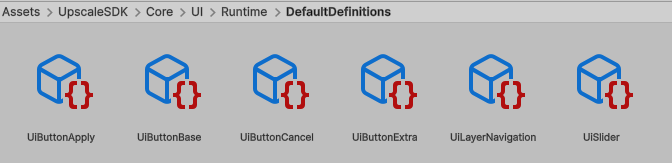
All defaults live at Assets/UpscaleSDK/Core/UI/Runtime/DefaultDefinitions/.
Device layouts
Device layouts build "controls" screens and control hints from the same InputActionDefinition assets your game already uses. You list the actions once with their labels, and each view shows only the actions that have an input source for its device - so one list serves gamepad, keyboard, and mouse.
There are two kinds of views:
- Device views -
GamepadLayoutView,KeyboardLayoutView,MouseLayoutView. Draw the device image from the active icon set, place a labelled row for every action around it, and connect each row to its button with a line. - List view -
DeviceLayoutListView. Spawns a flat row of icon + label pairs into a container - useful for "A Jump · B Back" hint bars.
All types live in the UpscaleSDK.Core.UI.Runtime.DeviceLayout namespace.
| Term | What it is |
|---|---|
DeviceLayoutActions |
MonoBehaviour that holds the shared list of Action (an InputActionDefinition) + Label pairs |
DeviceLayoutRowView |
Abstract component on your row prefab. The views call its SetIcon(Sprite) / SetLabel(string) |
GamepadLayoutView |
Device view for the connected gamepad model |
KeyboardLayoutView |
Device view for the keyboard |
MouseLayoutView |
Device view for the mouse |
DeviceLayoutListView |
Flat list view, horizontal or vertical |
LineRouter |
Abstract component that decides the shape of each connector line. Ships as SidesLineRouter and UnderlineLineRouter |
UIPolyline |
UGUI Graphic that draws a connector line through a list of points |
Info
Device views take the device image and button positions from the icon sets assigned in UpscaleSDKConfig. Each set needs a Device Image and placed anchors - see Manual → Input → Authoring icon sets. The sets in UpscaleSDK-Extras.unitypackage already have both.
DeviceLayoutActions
Add DeviceLayoutActions to any GameObject in the scene and fill its Items list. Each item has:
| Field | Type | Notes |
|---|---|---|
Action |
InputActionDefinition |
Any Bool / Float / Vector2 action definition asset |
Label |
string |
Text shown next to the icon |
Point every view at the same DeviceLayoutActions. An action that has no source for a view's device is skipped by that view - for example, an action bound only to a gamepad button does not appear on the keyboard layout.
To change the list from code, call SetItems(...) and then ask the views to redraw:
actions.SetItems(new[]
{
    new DeviceLayoutActionItem { Action = jumpDefinition,  Label = "Jump" },
    new DeviceLayoutActionItem { Action = moveDefinition,  Label = "Move" },
});

gamepadView.RequestRebuild();
Row prefabs
Views spawn your own row prefabs, so you control their look completely. A row prefab needs a DeviceLayoutRowView component on the root or on a child. The SDK only ships the abstract class (to keep the core free of a TextMeshPro dependency), so add a small subclass to your project:
using TMPro;
using UnityEngine;
using UnityEngine.UI;
using UpscaleSDK.Core.UI.Runtime.DeviceLayout;

public sealed class LayoutRowView : DeviceLayoutRowView
{
    [SerializeField] private Image _icon;
    [SerializeField] private TMP_Text _label;

    public override void SetIcon(Sprite sprite) => _icon.sprite = sprite;
    public override void SetLabel(string label) => _label.text = label;
}
The device views use a separate template for each side of the device, and the icon should face the device: on the left-column template the icon sits on the right side of the row, on the right-column template it sits on the left, and so on. The views never flip a row at runtime - the orientation comes from the prefab.
Device views
GamepadLayoutView, KeyboardLayoutView, and MouseLayoutView share the same Inspector. To set one up:
- Create a UI GameObject for the layout and add the view component (for example,
GamepadLayoutView). - Add a line router to the same GameObject -
SidesLineRouterorUnderlineLineRouter. - Under it, create an
Imagefor the device and two emptyRectTransformcontainers - one for rows, one for lines. - Create the four row prefabs (see Row prefabs) and a line prefab: a GameObject with a
UIPolylinecomponent. Set the line color on theUIPolylineand its width with Thickness. - Assign everything in the Inspector, including Actions Source.
The Inspector shows an error for every missing reference.
Warning
The Inspector does not check for a line router. Without a LineRouter component on the same GameObject, the view does not draw anything.
| Inspector field | Default | Notes |
|---|---|---|
| Device Image | - | Image that displays the device sprite from the active icon set. Preserve Aspect is respected |
| Rows Container | - | Parent for spawned rows |
| Lines Container | - | Parent for spawned lines |
| Left / Right / Top / Bottom Row Template | - | Row prefab per side of the device |
| Line Template | - | Prefab with a UIPolyline |
| Actions Source | - | The shared DeviceLayoutActions |
| Row Spacing | 12 |
Minimum gap between two rows on the same side |
| Row Side Margin | 40 |
Gap between the rows and the device image |
| Anchor Radius | 14 |
The line stops on a circle of this radius around the button instead of at its center |
| Anchor Padding | 4 |
Extra gap added to the anchor radius |
| Side Wedge Angle | 60 |
Decides which side a button's row goes to (see below) |
Each row goes to the side of the device closest to its button. Side Wedge Angle is the angle from the horizontal axis through the image center: buttons within it go left or right, all others go top or bottom. 90 puts everything on the left and right, 0 puts everything on the top and bottom, and 45 splits the image into diagonal quadrants. Rows on the same side keep the order of their buttons and are pushed apart so they never overlap.
Which icon set a view uses:
GamepadLayoutView- the set for the connected controller model (UPSInput.GetGamepadType()), so a DualSense shows the DualSense image and glyphs.KeyboardLayoutView/MouseLayoutView- the keyboard / mouse set fromUpscaleSDKConfig.
If the view's device is not connected, it hides the device image and draws no rows. Views redraw automatically when they are enabled, when a device connects or disconnects, and when their RectTransform is resized. Call RequestRebuild() to redraw manually.
Tip
Views also draw in edit mode, so you can tune the layout without entering Play mode. In edit mode every device counts as connected, and GamepadLayoutView previews the Switch Pro set.
Line routers
A line router turns a placed row and its button into the points of the connector line. Swap the component to change the line style; the view itself does not change.
| Router | Shape | Setting |
|---|---|---|
SidesLineRouter |
From the inner edge of the row, a short straight segment to an elbow next to the device, then diagonally to the button | Elbow Inset From Device (32) - distance from the device edge to the elbow |
UnderlineLineRouter |
An underline along the row (a side line for top / bottom rows), then diagonally from the row's inner corner to the button | Length (80) - length of the underline |
For a custom style, subclass LineRouter and implement BuildLinePoints(in LineContext ctx). LineContext provides the button anchor, the row side, the row attach point (RowX / RowY, the middle of the row's inner edge), the row size, the device bounds, and the anchor radius / padding. All coordinates are in the local space of the view. The protected helper ComputeSafeAnchorPoint(...) returns the point where a line should stop in front of the button.
public sealed class StraightLineRouter : LineRouter
{
    public override Vector2[] BuildLinePoints(in LineContext ctx)
    {
        var rowEdge = new Vector2(ctx.RowX, ctx.RowY);
        var stop    = ComputeSafeAnchorPoint(ctx.AnchorLocal, rowEdge, ctx.AnchorRadius, ctx.AnchorPadding);
        return new[] { rowEdge, stop };
    }
}
DeviceLayoutListView
Spawns one row per action into a single container. The stacking direction comes from the layout group on the container - add a HorizontalLayoutGroup for a hint bar or a VerticalLayoutGroup for a column.
| Inspector field | Notes |
|---|---|
| Rows Container | Parent for spawned rows, with a Horizontal / VerticalLayoutGroup |
| Row Template | Row prefab with a DeviceLayoutRowView |
| Actions Source | The shared DeviceLayoutActions |
| Override Target Devices | Leave empty for automatic selection, or list the devices to show |
With Override Target Devices empty, the list shows gamepad icons when a gamepad is connected, and keyboard and mouse icons otherwise - and switches automatically when a gamepad connects or disconnects. Fill the list to force specific devices: for each action, the view adds one row per listed device (in list order) that is connected and has a source for that action.
Related
- Manual → Input → Action Definitions - the asset format the UI components consume
- Manual → Input → Authoring icon sets - device images and anchors used by device layouts
- Sample → UI scenes - runnable examples, including the Device Layout scene
- API → Core / UI - generated reference