Saves
The Saves module is a platform-agnostic save system that gives you a Unity PlayerPrefs style key/value API on every platform - Desktop, Xbox, PlayStation, and Nintendo Switch without the per-platform plumbing leaking into your game code.
Features
- Key/value API -
Get/Setforint,float,string,bool - One API everywhere - same calls on Desktop, Xbox, PS4 / PS5, Switch
- Auto-save timer - periodic flush to disk, interval is configurable
- JSON serialisation - human-readable files via Newtonsoft.Json, polymorphism supported (
TypeNameHandling.All)
Setup
The save system is initialised automatically by RuntimeBootstrap once the active Platform is ready.
What you need to do:
- An
UpscaleSDKConfigasset, named asConfigatResources/UpscaleSDK/. - A
SavesSettingsreference assigned on that config (see Configuration).
Warning
Before using the save system, ensure that the platform-specific initialization has completed.
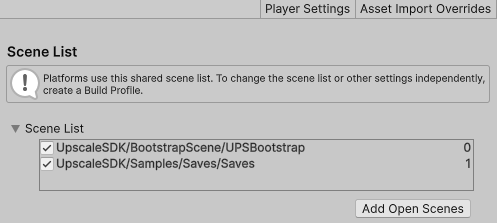
The recommended setup is to use the UPSBootstrap scene as the first scene in Build Settings.
Quick start
The recommended way to start using the save system is through UPSSaves.Prefs, this is primary high-level API for reading and writing save data and should cover most common use cases.
public sealed class ScoreBoard : MonoBehaviour
{
    private void Load()
    {
        int score    = UPSSaves.Prefs.GetInt("score", 0);
        string name  = UPSSaves.Prefs.GetString("playerName", "Unknown");
        bool tutorial = UPSSaves.Prefs.GetBool("tutorialSeen", false);
    }

    public void RecordWin(int newScore)
    {
        UPSSaves.Prefs.SetInt("score", newScore);
        UPSSaves.Prefs.SetBool("tutorialSeen", true);
        UPSSaves.Prefs.TrySave();   // explicit flush (auto-save fires on its own timer too)
    }
}
TrySave() is a no-op if the system isn't ready, so it is safe to call at any time.
Core concepts
| Term | What it is |
|---|---|
UPSSaves |
Facade, exposes Prefs and Saver and signals IsReady |
UPSPlayerPrefs |
The everyday key/value API (drop-in mental model: Unity's PlayerPrefs) |
Saver |
Lower-level system - owns the in-memory Dictionary<string,string>, drives I/O, UPSPlayerPrefs uses this for save/load logic |
AutoSaver |
Interval timer that calls TrySave() automatically |
SavesSettings |
ScriptableObject of configuration: autosave interval, file extension, container name |
UPSPlayerPrefs - key/value saves
This is what most game code talks to. Access via UPSSaves.Prefs.
Readiness
Get / Set
UPSSaves.Prefs.SetInt("level", 7);
UPSSaves.Prefs.SetFloat("health", 0.85f);
UPSSaves.Prefs.SetString("playerName", "Hero");
UPSSaves.Prefs.SetBool("hardMode", true);

int    level    = UPSSaves.Prefs.GetInt("level",      defaultValue: 1);
float  health   = UPSSaves.Prefs.GetFloat("health",   defaultValue: 1f);
string player   = UPSSaves.Prefs.GetString("playerName", defaultValue: "Player");
bool   hardMode = UPSSaves.Prefs.GetBool("hardMode",  defaultValue: false);
Keys
Flush to disk
Info
You do not need to call this after every change - AutoSaver already handles periodic flushing.
Use explicit saves only at important checkpoints, or if you implementing your own autosaves. Excessive save calls are discouraged, since platforms may have I/O limitations and save operations can be expensive.
AutoSaver
A small interval timer used internally by UPSPlayerPrefs to flush periodically. The defaults are pulled from SavesSettings:
| Setting | Default | Effect |
|---|---|---|
EnableAutosaves |
true |
Master switch |
SecondsBetweenAutosaves |
300 |
Interval between auto-flushes |
The AutoSaver is Tick-driven (Tick(Time.unscaledDeltaTime)), so it dont cooperates with paused / slowed game time.
Error handling
Some console platforms require runtime error handling. The global dispatcher receives all errors raised through ErrorHandler.RaiseError(string), allowing the platform layer or game code to display the appropriate message (see Samples → Saves).
Saver - lower-level saves
Danger
Saver is considered an advanced API surface. Most projects should interact with the save system exclusively through UPSPlayerPrefs. This API is currently under development, may change in future versions, and is not yet as thoroughly tested as the main UPSPlayerPrefs workflow.
Use UPSSaves.Saver directly only when you need control beyond the key/value API: enumerating multiple named save files, writing a "named slot" save, or hooking the granular lifecycle events. Before using this API, wait for platform to finish initialization. You can check UPSSaves.IsReady to know when the system is ready to use.
Writing a named save
void SetSaveData(string key, string data) => UPSSaves.Saver.CurrentSaveData[key] = data;
UPSSaves.Saver.Save();                          // auto-named: Save_yyyyMMdd_HHmmss
UPSSaves.Saver.Save("Slot1");                   // named slot
Reading a named save
UPSSaves.Saver.OnLoadCompleted += success => Debug.Log($"Load: {success}");
UPSSaves.Saver.Load("Slot1");
Info
Load() is asynchronous because many platforms may perform save operations through cloud storage or other asynchronous I/O systems.
Subscribe to OnLoadCompleted(bool) to know when the in-memory state has been replaced with the loaded data.
Enumerating saves
UPSSaves.Saver.OnSavesFound += entries =>
{
    foreach (FileEntry e in entries)
        Debug.Log($"{e.Name}");
};
UPSSaves.Saver.StartSavesSearch();
Live state
CurrentSaveState is the in-memory Dictionary<string,string> that backs every UPSPlayerPrefs.Get*/Set* call. You normally don't poke it directly, but it can be useful for diagnostics.
Lifecycle events
Saver implements ISaverEvents. Subscribe to whichever ones you need:
| Event | Fires |
|---|---|
OnSaveStarted(Dictionary<string,string>) |
About to write |
OnSaveCompleted(string) |
Write finished |
OnLoadStarted() |
About to read |
OnLoadCompleted(bool) |
Read finished |
OnSavesFound(FileEntry[]) |
Save directory enumeration finished |
OnReadError(int code, string message) |
Read failed (platform-specific code) |
OnWriteError(int code, string message) |
Write failed (platform-specific code) |
Configuration
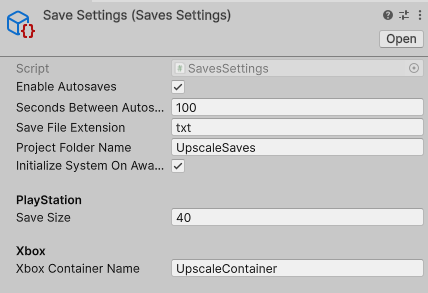
SavesSettings is a ScriptableObject referenced by UpscaleSDKConfig. Create one via Create → Upscale SDK → Saves → Settings, then drop it into the UpscaleSDKConfig config asset.
| Field | Type | Default | Notes |
|---|---|---|---|
EnableAutosaves |
bool |
true |
Master switch for the AutoSaver timer |
SecondsBetweenAutosaves |
int |
300 |
Autosave interval |
SaveFileExtension |
string |
"txt" |
File suffix (.txt, .json) |
ProjectFolderName |
string |
"UpscaleSaves" |
Folder under Application.persistentDataPath on Desktop |
InitializeSystemOnAwake |
bool |
true |
Currently unused |
SaveSize |
UInt64 |
(project-specific) | PS4 / PS5 storage allocation, in megabytes |
XboxContainerName |
string |
"UpscaleContainer" |
Xbox connected-storage container name - alphanumeric, _, /, ., - only |
Platform abstraction
Warning
This section is still under development and may change in future SDK versions.
The Saves module itself is platform-free - there are no #if UNITY_GAMECORE blocks in Core/Saves. The seam is IFileSystem, supplied by whichever Platform subclass is active:
| Platform | IFileSystem implementation |
|---|---|
| Desktop | DesktopFileSystem (System.IO) |
| Xbox (Series / One) | XboxFileSystem (XGameSave API) |
| PS4 | PS4FileSystem |
| PS5 | PS5FileSystem |
| Switch | SwitchFileSystem |
You normally never touch these directly. If you need to mock saves for a test harness or pipe them to a custom backend (e.g. cloud), implement IFileSystem and return it from a custom Platform.ProvideFileSystem() override.
Related
- Sample → Saves scene - runnable example
- API → Core / Saves - generated reference