Input
Scenes that exercise the Input module: a live tester of gamepad input via BaseGamepadActionSet, and two sets of drop-in prefabs that render the correct glyph for each input shape - one for gamepad, one for keyboard and mouse.
Gamepad
A visual tester that lights up gamepad input - sticks, triggers, face buttons, D-pad, shoulders. Useful for sanity-checking a new device, validating that an IInputProvider swap still reads everything, or just confirming BaseGamepadActionSet is wired up after a fresh install.
| Scene | Assets/UpscaleSDK/Samples/Input/Gamepad/Gamepad.unity |
|---|---|
| Script | GamepadDemo.cs |
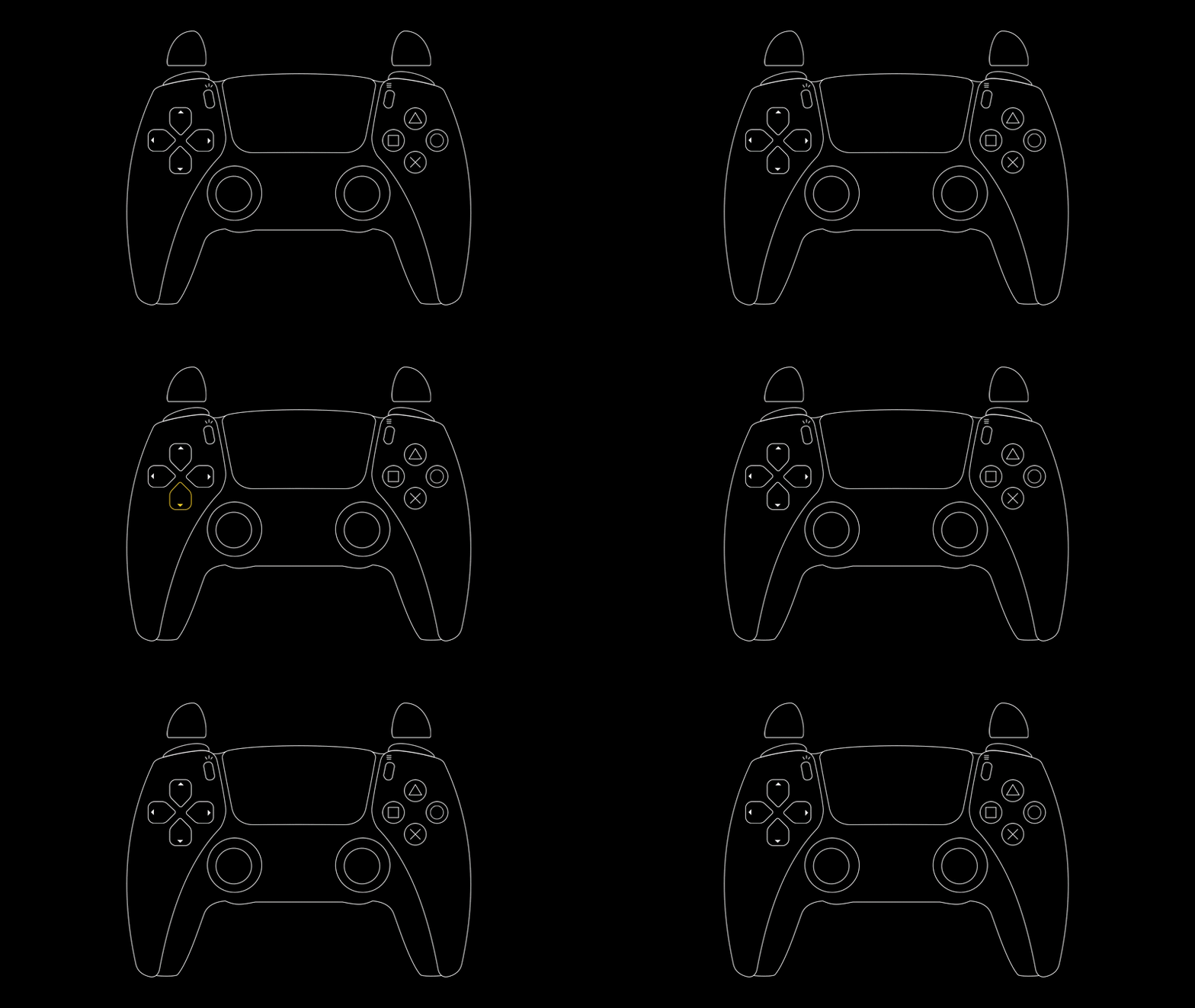
What it demonstrates
- Polling
BaseGamepadActionSetevery frame with.Read()- no events, no subscriptions - Reading every category of input the set exposes (
boolbuttons,floattriggers,Vector2sticks / D-pad) - Mapping a raw input value to a UI response (color swap for buttons / triggers)
Info
Note the use of .Hold on ButtonActionGroup for the buttons - that's the variant that returns true for every frame the button is held, which is exactly what you want for a "lights up while pressed" indicator. See Manual → Input → Button triggers for the difference between Press, Hold, and Release.
Gamepad glyphs
A scene of small reusable components that each render the correct controller glyph for one kind of input - a button, an action, a 1D axis (trigger), or a 2D axis (stick). The prefabs share a common visual style so they compose cleanly with the keyboard/mouse glyph prefabs below.
| Scene | Assets/UpscaleSDK/Samples/Input/Glyphs/Gamepad/GamepadGlyphs.unity |
|---|---|
| Scripts | GlyphForGamepadButton.cs, GlyphForGamepadAction.cs, GlyphForGamepad1DAxis.cs, GlyphForGamepad2DAxis.cs |
| Prefabs | GlyphForGamepadButton.prefab, GlyphForGamepadAction.prefab, GlyphForGamepad1dAxis.prefab, GlyphForGamepad2dAxis.prefab |
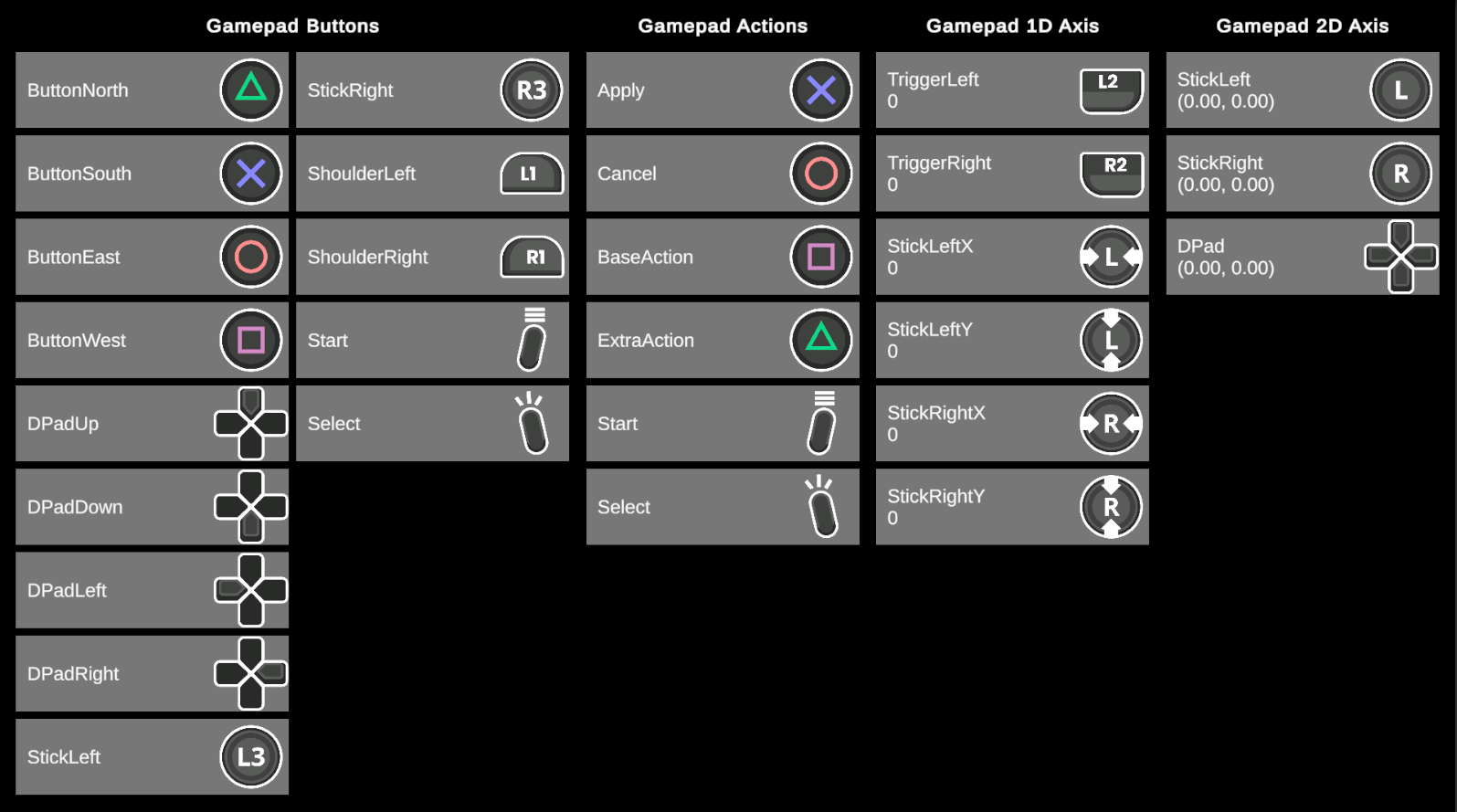
What it demonstrates
- Resolving a
GamepadGlyphsprite at runtime via the activeGamepadIconsSetonUpscaleSDKConfig - Basic usage of
TryGetGlyphinInputAction<T>
Tip
In most cases, you can use Action Definitions from Manual → Input → Action Definitions to resolve sprites.
Warning
Make sure your UpscaleSDKConfig has the per-controller GamepadIconsSet references filled in (see Manual → Input → Glyphs).
Keyboard & mouse glyphs
Desktop counterpart to the gamepad glyphs scene. Renders the correct icon for a keyboard key, a mouse button, a mouse 1D axis (scroll / delta / position component), or a mouse 2D axis (mouse delta or cursor position) using the KeyboardIconsSet and MouseIconsSet assigned in UpscaleSDKConfig.
| Scene | Assets/UpscaleSDK/Samples/Input/Glyphs/MouseAndKeyboard/DesktopGlyphs.unity |
|---|---|
| Scripts | GlyphForKeyboardButton.cs, GlyphForKeyboard2DAxis.cs, GlyphForMouseButton.cs, GlyphForMouse1DAxis.cs, GlyphForMouse2DAxis.cs |
| Prefabs | GlyphForKeyboardButton.prefab, GlyphForKeyboard2DAxis.prefab, GlyphForMouseButton.prefab, GlyphForMouse1DAxis.prefab, GlyphForMouse2DAxis.prefab |
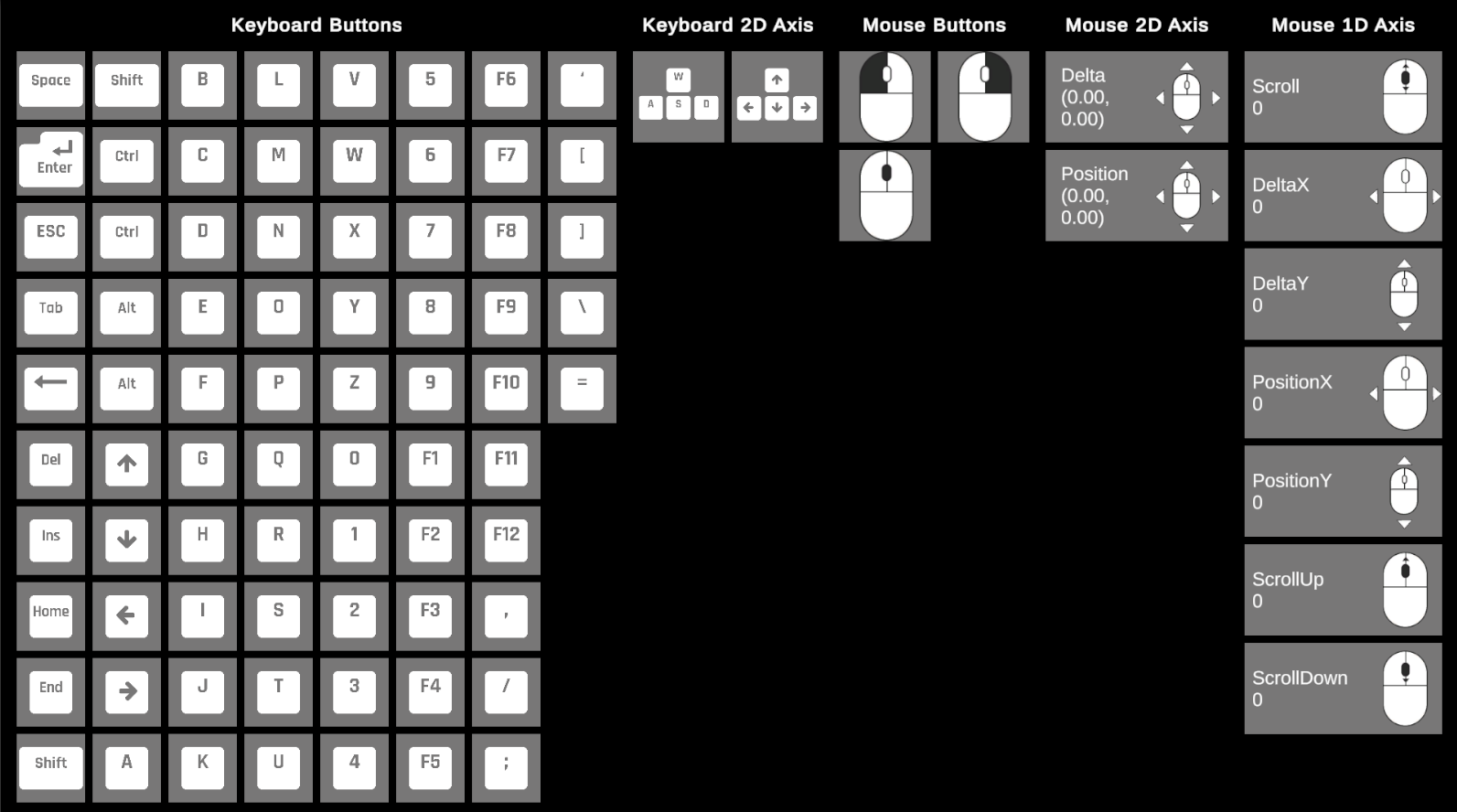
What it demonstrates
- Resolving a
KeyboardGlyphsprite via theKeyboardIconsSetonUpscaleSDKConfig - Resolving a
MouseGlyphsprite via theMouseIconsSetonUpscaleSDKConfig - Handling composite keyboard axes (
WASD,Arrows)
Tip
In most cases, you can use Action Definitions from Manual → Input → Action Definitions to resolve sprites.
Warning
Make sure your UpscaleSDKConfig has the KeyboardIconsSet and MouseIconsSet fields filled in (see Manual → Input → Glyphs).