Input
The Input module provides a strongly-typed, action-based abstraction over Unity new input system that works the same way on Desktop (keyboard / mouse), Xbox, PlayStation, and Nintendo Switch. You describe what the player wants to do (Jump, Move, Apply) and the SDK maps it to the appropriate device button, key, or axis at runtime.
Features
- Action-based input - bind, read by name or reference
- Strongly-typed actions -
bool,float,Vector2 - Binding builder - chain
BindAs… → To… → WithProcessor… → Complete() - Pre-made action sets -
BaseGamepadActionSet,BaseKeyboardActionSet,BaseMouseInputActionSet - Custom action sets - group your game-specific actions
- Cross-platform action mapping -
Apply/Cancelresolve to the right face button for the connected controller - Multi-device sources - gamepad, keyboard, and mouse can back the same action
- Pluggable processors - deadzone, invert, repeat-delay, or your own
IProcessor<T> - Controller model detection - distinguishes DualSense, DualShock 4, Xbox Controller, Switch Pro Controller, and Joy-Cons
- Controller & keyboard/mouse glyphs - per-controller-model icon sets, plus keyboard/mouse icon sets
- Device images & anchors - icon sets carry a device image and per-button anchors, used by UI → Device layouts
- Provider abstraction - the runtime decouples your code from Unity new Input System
- Event-based or polled - subscribe to
Performed, or call.Read()
Setup
Input System is automatically initialized by the RuntimeBootstrap component during application startup. It is also automatically deinitialized when the OnDestroy lifecycle event is triggered, allowing the system to correctly release resources and unregister callbacks.
Warning
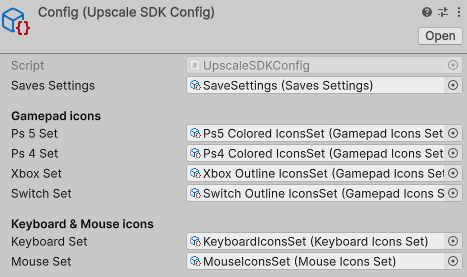
You must have an UpscaleSDKConfig asset at Resources/UpscaleSDK/Config with glyph sets assigned for every controller model you plan to support. Without it, TryGetGlyph() returns null and gamepad detection on Desktop platform falls back to GamepadType.None. The keyboard and mouse icon sets are also assigned here for Desktop glyphs.
Quick start
Read input (polling)
bool jumpHeld   = BaseGamepadActionSet.Instance.South.Hold.Read();
Vector2 move    = BaseGamepadActionSet.Instance.LeftStick.Read();
float trigger   = BaseGamepadActionSet.Instance.RightTrigger.Read();

bool spaceHeld  = BaseKeyboardActionSet.Instance.Space.Hold.Read();
Vector2 wasd    = BaseKeyboardActionSet.Instance.WASD.Read();

bool leftClick  = BaseMouseInputActionSet.Instance.LeftClick.Press.Read();
Vector2 mouseDelta = BaseMouseInputActionSet.Instance.MouseDelta.Read();
Subscribe to input events
private void OnEnable()
{
    BaseGamepadActionSet.Instance.Apply.Press.Performed += OnApply;
}

private void OnDisable()
{
    BaseGamepadActionSet.Instance.Apply.Press.Performed -= OnApply;
}

private void OnApply(bool pressed)
{
    Debug.Log($"Apply pressed: {pressed}");
}
Always unsubscribe in OnDisable / OnDestroy - InputAction<T> events are long-lived and will keep your objects alive otherwise.
Info
BaseInputActionSet was renamed to BaseGamepadActionSet when keyboard and mouse support landed. Update your references - the API surface is otherwise identical.
Core concepts
Action, Action Group, Action Set, Action Definition
| Term | What it is |
|---|---|
InputAction<T> |
A single named input that produces a value of type T and fires Performed |
ButtonActionGroup |
A button bundled (based on InputAction<T>) into its three trigger variants: Press, Hold, Release |
InputActionsSet<T> |
A collection of actions you activate/deactivate as a single unit |
InputActionDefinition<T> |
A ScriptableObject asset that authors an action in the Inspector |
Button triggers
Every button can exposed as three actions via ButtonActionGroup:
| Trigger | Fires |
|---|---|
Press |
Once on the frame the button goes down |
Hold |
Every frame while the button is held |
Release |
Once on the frame the button goes up |
BaseGamepadActionSet.Instance.South.Press.Performed   += OnJumpStart;
BaseGamepadActionSet.Instance.South.Hold.Performed    += OnJumpCharging;
BaseGamepadActionSet.Instance.South.Release.Performed += OnJumpRelease;
Cross-platform action mapping
1. Controller Layout Mappings (Device Level)
Some semantic actions (Apply, Cancel, …) automatically resolve to the right physical button for the connected controller. Use these instead of hard-coding South / East when you want controller-appropriate button mappings.
| Action | PlayStation (DualSense / DualShock 4) |
Nintendo (Switch Pro / Joy-Cons) |
Xbox Controller | Fallback ( GamepadType.None) |
|---|---|---|---|---|
| Apply | Cross | A | A | A |
| Cancel | Circle | B | B | B |
| Base | Square | X | Y | X |
| Extra | Triangle | Y | X | Y |
Note on Fallback: If
UPSInput.GetGamepadType()returnsGamepadType.None(e.g., unrecognized device), the system defaults to the Nintendo visual and positional layout.
2. Platform Overrides (Runtime Rules)
Platform-specific logic supersedes default device mappings for targeted builds to comply with console platform guidelines.
PS4 / Console Builds
- Apply / Cancel Swapping: On PS4 builds, the
ApplyandCancelbindings dynamically adapt to the system-level console setting ("Enter button" /Swap Circle and Cross). - If the system standard is Cross ($\times$) = Enter:
Apply$\rightarrow$ Cross ($\times$),Cancel$\rightarrow$ Circle ($\bigcirc$). - If the system standard is Circle ($\bigcirc$) = Enter:
Apply$\rightarrow$ Circle ($\bigcirc$),Cancel$\rightarrow$ Cross ($\times$). - Base / Extra Actions: Remain unchanged ($\square$ and $\triangle$ respectively).
On PS4 builds, Apply / Cancel follow the system "Enter button" setting (X or O). Everywhere else the mapping follows the controller model reported by UPSInput.GetGamepadType() - so a DualSense connected to a Desktop build gets PlayStation mappings, and a Switch Pro Controller gets Nintendo mappings. If no model is detected (GamepadType.None), the Nintendo layout is used.
BaseGamepadActionSet.Instance.Apply.Press.Performed  += OnConfirm;
BaseGamepadActionSet.Instance.Cancel.Press.Performed += OnBack;
Pre-made action sets
The SDK ships three ready-to-use singleton sets covering every standard input surface. Each one is created lazily on first access to .Instance.
BaseGamepadActionSet
Pre-made set covering every standard gamepad input.
| Category | Members |
|---|---|
| Face buttons (raw) | South, West, North, East |
| Face buttons (mapped) | Apply, Cancel, Base, Extra |
| System buttons | Start, Select |
| Shoulders / stick clicks | LeftShoulder, RightShoulder, LeftStickButton, RightStickButton |
| D-pad buttons | DpadUp, DpadDown, DpadLeft, DpadRight |
Triggers (float) |
LeftTrigger, RightTrigger |
Stick axes (float) |
LeftStickX, LeftStickY, RightStickX, RightStickY |
Sticks / D-pad (Vector2) |
LeftStick, RightStick, DPad |
All button members are ButtonActionGroup (.Press / .Hold / .Release). Float and Vector2 members are InputAction<float> / InputAction<Vector2>.
BaseKeyboardActionSet
Pre-made set covering the common keys plus two composite Vector2 axes.
| Category | Members |
|---|---|
Composite (Vector2) |
WASD (X = D − A, Y = W − S), Arrows (X = Right − Left, Y = Up − Down) |
| Named keys | Space, Enter, Escape, Tab, Backspace, Delete, Insert, Home, End |
| Modifiers | LeftShift, RightShift, LeftCtrl, RightCtrl, LeftAlt, RightAlt |
| Arrow keys | UpArrow, DownArrow, LeftArrow, RightArrow |
| Letters | KeyA … KeyZ |
| Digits | Digit0 … Digit9 |
| Function keys | F1 … F12 |
| Symbols | Comma, Slash, Semicolon, Quote, LeftBracket, RightBracket, Backslash, EqualsKey |
All key members are ButtonActionGroup (.Press / .Hold / .Release).
BaseMouseInputActionSet
Pre-made set covering mouse buttons, scroll, delta, and cursor position.
| Category | Members |
|---|---|
| Buttons | LeftClick, RightClick, MiddleClick |
Scroll (float) |
Scroll (signed), ScrollUp, ScrollDown |
Delta / position (Vector2) |
MouseDelta, MousePosition |
Delta / position (float) |
MouseDeltaX, MouseDeltaY, MousePositionX, MousePositionY |
Custom action sets
For game-specific input, subclass InputActionsSet<T> and define your bindings in Initialize:
public sealed class PlayerInputActionSet : InputActionsSet<PlayerInputActionSet>
{
    public InputAction<bool>    Interact { get; private set; }
    public InputAction<Vector2> Move     { get; private set; }
    public InputAction<float>   Aim      { get; private set; }

    protected override void Initialize(InputSetBuilder builder)
    {
        Interact = builder.BindAsBool("Interact")
                          .ToAction(GamepadAction.Apply, ButtonTrigger.Press)
                          .Complete();

        Move     = builder.BindAsVector2("Move")
                          .ToLeftStick()
                          .WithDeadzone(0.15f)
                          .Complete();

        Aim      = builder.BindAsFloat("Aim")
                          .ToRightTrigger()
                          .Complete();
    }
}
Access through the singleton:
Lifecycle
// Enable/disable callbacks for the entire set
PlayerInputActionSet.Instance.Activate();
PlayerInputActionSet.Instance.Deactivate();

bool isActive = PlayerInputActionSet.Instance.IsActive;

// Release all bindings registered by this set
PlayerInputActionSet.Instance.Dispose();
Deactivate() is the right tool for "pause player input while a menu is open." Dispose() is the right tool for scene unload or shutdown.
Action Definitions
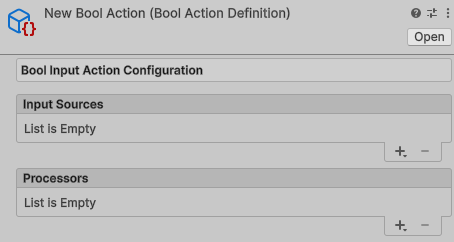
InputActionDefinition is the asset-based counterpart to the fluent builder. Each definition is a ScriptableObject that holds a list of input sources and a list of processors; at runtime, calling .Build() returns a wired-up InputAction<T>. Use them when you want input to be authored in the Inspector - by designers, modders, or just so the binding lives next to the prefab that consumes it - instead of expressed in code.
| Definition asset | Value type | Returns |
|---|---|---|
BoolActionDefinition |
bool |
InputAction<bool> |
FloatActionDefinition |
float |
InputAction<float> |
Vector2ActionDefinition |
Vector2 |
InputAction<Vector2> |
Creating a definition
Project window → right-click → Create → Upscale SDK → Input → Actions → <Bool / Float / Vector2> Action
Configuring it
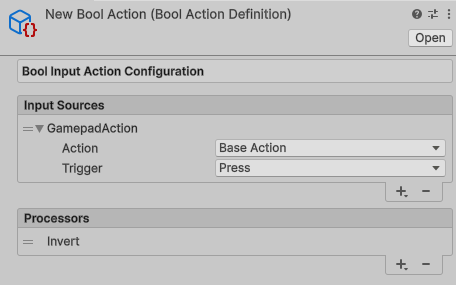
In the inspector you fill two reorderable lists:
- Sources - one or more
IInputSource<T>instances (gamepad button, gamepad stick axis, keyboard key, keyboard composite, mouse button, mouse axis). The dropdown is auto-populated with every concreteIInputSource<T>matching the asset's value type - so a single definition can list a gamepad button and a keyboard key side by side. - Processors - one or more
IProcessor<T>instances applied in order. The custom editor warns if you add the same processor type twice.
Both lists use [SerializeReference] so custom subclasses you write in your own assembly appear in the dropdowns automatically - no editor code required.
Building at runtime
[SerializeField] private BoolActionDefinition _interactDefinition;
[SerializeField] private Vector2ActionDefinition _moveDefinition;

private InputAction<bool>    _interact;
private InputAction<Vector2> _move;

private void OnEnable()
{
    _interact = _interactDefinition.Build();
    _move     = _moveDefinition.Build();

    _interact.Performed += OnInteract;
    _move.Performed     += OnMove;
}

private void OnDisable()
{
    _interact.Performed -= OnInteract;
    _move.Performed     -= OnMove;

    _interact.Dispose();
    _move.Dispose();
}
Each .Build() call registers a new binding under a freshly generated GUID, so the same asset can be built multiple times (e.g. one per player) without collisions. The returned InputAction<T> is the same type you'd get from UPSInput.BindAs<T>(...).Complete() - .Read(), .Performed, and .TryGetGlyph() all work identically.
Tip
Definitions and custom action sets are not mutually exclusive - a custom InputActionsSet<T> can serialise [SerializeField] InputActionDefinition<T> fields and call .Build() on them inside Initialize(...), which gives you a set that's partly code-defined and partly asset-defined.
Static API (UPSInput)
Use the static API when an action does not belong to a long-lived set - for example one-off bindings, editor tools, or runtime-defined inputs.
// Bind
UPSInput.BindAsBool("Interact")
        .ToButton(GamepadButton.ButtonSouth, ButtonTrigger.Press)
        .Complete();

// Subscribe / unsubscribe
UPSInput.Subscribe<bool>("Interact", OnInteract);
UPSInput.Unsubscribe<bool>("Interact", OnInteract);

// Toggle an individual action
UPSInput.SetActionState("Interact", active: false);

// Remove a binding entirely
UPSInput.Unbind("Interact");
Device queries
GamepadType pad         = UPSInput.GetGamepadType();          // None / DualSense / DualShock4 / XboxController / SwitchPro / SwitchJoycons
DeviceType[] connected  = UPSInput.GetConnectedDevices();     // Keyboard, Gamepad, Mouse
DeviceType primary      = UPSInput.GetPrimaryDevice();        // gamepad wins when connected; else keyboard, else mouse
GetPrimaryDevice() is the recommended input signal for "which glyph should I render right now?" On console builds it always returns Gamepad; on Desktop it prefers a connected gamepad, then keyboard, then mouse.
GetConnectedDevices() is safe to call before the input module is initialized (early execution order, edit-mode previews) - it returns an empty array instead of throwing.
Controller model detection
GamepadType identifies the physical controller model, not the platform family:
GamepadType |
Controller |
|---|---|
None |
No gamepad detected |
DualSense |
Sony DualSense (PS5) |
DualShock4 |
Sony DualShock 4 (PS4) |
XboxController |
Xbox One / Series controller |
SwitchPro |
Nintendo Switch Pro Controller |
SwitchJoycons |
Nintendo Switch Joy-Cons |
How the model is resolved depends on the build target:
| Target | Detection |
|---|---|
| PS5 | Always DualSense |
| PS4 | DualShock4, or DualSense when the PS4 build runs on PS5 hardware |
| Xbox (Series / One) | Always XboxController |
| Nintendo Switch | Reads the NPad style: Pro Controller / full-key style → SwitchPro, any other style (handheld, dual or single Joy-Con) → SwitchJoycons |
| Desktop / Editor | Matches the device name, product, and manufacturer. Unrecognized gamepads are reported as XboxController |
In the Editor, GetGamepadType() returns SwitchPro while the input module is not initialized (for example, in edit mode).
Info
GamepadType used to describe platform families (Nintendo, PlayStation, Xbox). These members were replaced with the model-specific values above. Note that the underlying numeric values changed too (1 was Nintendo and is now DualSense), so review any serialized GamepadType fields after upgrading.
Vibration
UPSInput.SetGamepadVibration(lowFrequency: 0.4f, highFrequency: 0.7f);
UPSInput.StopGamepadVibration();
Device hot-plug events
UPSInput.OnDeviceAdded   += device => Debug.Log($"Connected: {device}");
UPSInput.OnDeviceRemoved += device => Debug.Log($"Disconnected: {device}");
Binding builder
Every binding follows the same shape - three required calls, with optional processors in between:
You can attach more than one source to the same binding (e.g. a gamepad button and a keyboard key) by calling multiple To… methods before Complete().
Bool
| Source | Method |
|---|---|
| A physical gamepad button | .ToButton(GamepadButton, ButtonTrigger) |
| A semantic action | .ToAction(GamepadAction, ButtonTrigger) |
| A keyboard key | .ToKey(KeyboardKey, ButtonTrigger) |
| A mouse button | .ToMouseButton(MouseButton, ButtonTrigger) |
| Inversion | .WithInvert() |
UPSInput.BindAsBool("Jump")
        .ToButton(GamepadButton.ButtonSouth, ButtonTrigger.Press)
        .ToKey(KeyboardKey.Space, ButtonTrigger.Press)
        .Complete();
Float
| Source | Method |
|---|---|
| Left stick X / Y | .ToXLeftStick() / .ToYLeftStick() |
| Right stick X / Y | .ToXRightStick() / .ToYRightStick() |
| Triggers | .ToLeftTrigger() / .ToRightTrigger() |
| Mouse 1D axis | .ToMouseAxis(Mouse1DAxis) (scroll, delta X/Y, position X/Y, scroll up/down) |
| Inversion | .WithInvert() |
UPSInput.BindAsFloat("Aim").ToRightTrigger().Complete();
UPSInput.BindAsFloat("Zoom").ToMouseAxis(Mouse1DAxis.Scroll).Complete();
Vector2
| Source | Method |
|---|---|
| Gamepad sticks | .ToLeftStick() / .ToRightStick() |
| D-pad | .ToDpad() |
| Mouse 2D axis | .ToMouseAxis(Mouse2DAxis) (delta, position) |
| Keyboard WASD | .ToWASD() |
| Keyboard arrows | .ToArrows() |
| Deadzone | .WithDeadzone(float) |
| Axis inversion | .WithInvertX() / .WithInvertY() |
UPSInput.BindAsVector2("Move")
        .ToLeftStick()
        .ToWASD()
        .WithDeadzone(0.15f)
        .WithInvertY()
        .Complete();
Processors
Processors transform input values between the source and the consumer. They implement IProcessor<T> and are attached with .WithProcessor(...).
Built-in processors
| Processor | T | Behaviour |
|---|---|---|
InvertBoolProcessor |
bool |
Returns !value |
InvertFloatProcessor |
float |
Returns -value |
InvertXVector2Processor |
Vector2 |
Negates X, preserves Y |
InvertYVector2Processor |
Vector2 |
Preserves X, negates Y |
DeadzoneVector2Processor |
Vector2 |
Returns Vector2.zero if magnitude is below the deadzone threshold |
DelayVector2Processor |
Vector2 |
Normalises to cardinal axes and repeats with initialDelay / repeatDelay - designed for D-pad/Stick |
Custom processors
Any class implementing IProcessor<T> can be plugged in:
[Serializable]
public sealed class ScaleVector2Processor : IProcessor<Vector2>
{
    [SerializeField] private float _factor;

    public ScaleVector2Processor(float factor) => _factor = factor;

    public Vector2 Process(Vector2 value) => value * _factor;

    public IProcessor<Vector2> Clone() => (IProcessor<Vector2>)MemberwiseClone();
}
Clone() is called when the same processor instance is shared across multiple bindings and one of them needs an isolated copy of the internal state - implement it via MemberwiseClone() unless you hold reference-type state.
Usage:
builder.BindAsVector2("Move")
       .ToLeftStick()
       .WithProcessor(new ScaleVector2Processor(1.5f))
       .Complete();
Processors can be chained - each is applied in registration order.
Glyphs
TryGetGlyph() returns the device-specific sprite for an action, so you can show the right icon in tooltips and prompts. When a binding has multiple sources (gamepad + keyboard, for instance), the glyph provider picks the source whose device matches UPSInput.GetPrimaryDevice().
Sprite icon = BaseGamepadActionSet.Instance.Apply.Press.TryGetGlyph();

// or via the static API
Sprite east  = UPSInput.TryGetGlyph(GamepadGlyph.East);
Glyphs from action definitions
Action definitions expose their glyph-capable sources through GlyphSources, so you can resolve an icon without building the action first. Pass a DeviceType to get the icon for one specific device only - the call returns null if the action has no source for that device, instead of falling back to whichever device is primary.
using DeviceType = UpscaleSDK.Core.Input.Core.Enums.DeviceType;

[SerializeField] private BoolActionDefinition _jumpDefinition;

IGlyphProvider provider = UPSInput.TryGetGlyphProvider();

Sprite current  = provider.TryProvide(_jumpDefinition.GlyphSources);                      // primary device first
Sprite keyboard = provider.TryProvide(_jumpDefinition.GlyphSources, DeviceType.Keyboard); // keyboard only, or null
TryGetGlyphProvider() also works before the input module is initialized (e.g. in edit mode) - it creates a standalone provider on demand.
Icon set types
| Set | Menu path | Provides |
|---|---|---|
GamepadIconsSet |
Upscale SDK → Gamepad Icons Set | GamepadGlyph → Sprite |
KeyboardIconsSet |
Upscale SDK → Keyboard Icons Set | KeyboardGlyph → Sprite |
MouseIconsSet |
Upscale SDK → Mouse Icons Set | MouseGlyph → Sprite |
Authoring icon sets
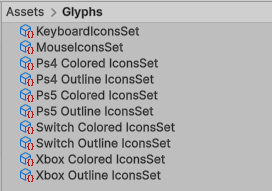
You need one GamepadIconsSet per controller model you support (DualSense, DualShock 4, Xbox Controller, Switch Pro Controller, Joy-Cons), plus optional KeyboardIconsSet / MouseIconsSet when you target Desktop.
1. Create the icon sets
Project window → right-click → Create → Upscale SDK → Gamepad Icons Set (or Keyboard Icons Set / Mouse Icons Set).
Name them descriptively, e.g. DualSense_Icons, DualShock4_Icons, Xbox_Icons, SwitchPro_Icons, JoyCons_Icons, Keyboard_Icons, Mouse_Icons.
2. Assign sprites
Open each set in the Inspector and drop a sprite into every slot:
GamepadIconsSet- face buttons, D-pad, sticks, shoulders, triggers, Start / Select.KeyboardIconsSet- letters, digits, function keys, modifiers, arrows, symbols, plusWASD/Arrowscomposites.MouseIconsSet- left / right / middle, scroll (up / down / signed), and move (X / Y / delta).
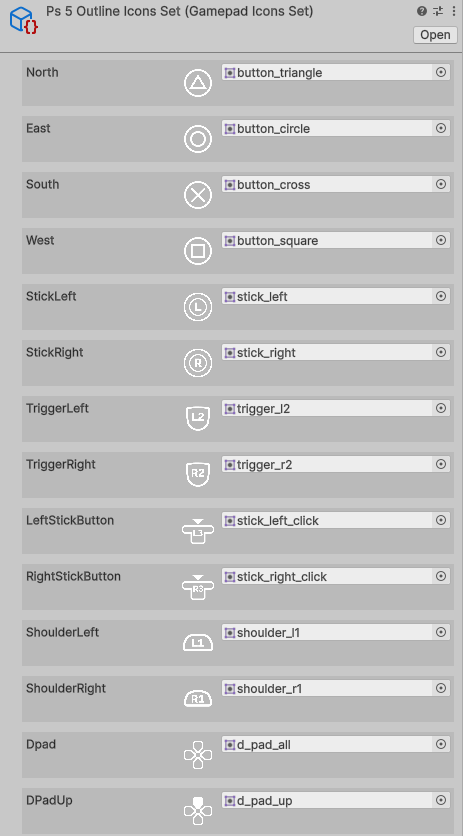
3. (Optional) Author the device layout
Each icon set can also describe where every button sits on a picture of the device. This data is only needed for the visual Device layouts in the UI module - glyph lookup works without it.
- Assign a sprite to Device Image at the top of the Inspector - a preview of the device appears below it.
- Click Edit Layout. The glyph list is replaced with a Glyph dropdown, and every anchor is shown as a dot on the preview.
- Pick a glyph in the dropdown, then click or drag on the image to place its anchor, or type exact X / Y values.
Anchors are stored in the image's normalized space: 0..1 on both axes, origin in the bottom-left corner. New gamepad entries start at default positions for a typical controller layout, so you usually only need to nudge them. Click Edit Layout again to return to the sprite list.
4. Wire the sets into UpscaleSDKConfig
Open your UpscaleSDKConfig asset and assign:
- Each gamepad icon set under Gamepad sets:
Dualsense Set,Dualshock 4 Set,Xbox Set,Switch Pro Set,Switch Joycons Set.GlyphProviderpicks the correct set at runtime based onUPSInput.GetGamepadType()- on every platform, including consoles. When no gamepad model is detected, the Switch Pro set is used. - The
KeyboardIconsSetandMouseIconsSetunder Keyboard & Mouse sets for Desktop targets.
Warning
The gamepad fields on UpscaleSDKConfig were renamed when controller model detection was introduced (the former PS5 / PS4 / Switch fields became Dualsense Set / Dualshock 4 Set / Switch Pro Set, and Switch Joycons Set was added). Existing config assets lose those references after upgrading - reassign them.
Tip
The optional UpscaleSDK-Extras.unitypackage already includes pre-configured icon set assets under Assets/UpscaleSDK/Extras/Glyphs: DualSense, DualShock, Xbox, SwitchPro, and SwitchJoyCons, each in both Outline and Colored flavors, plus a White keyboard/mouse set under Desktop. The sets come with device images and anchors already placed.
Related
- Sample → Input scenes - runnable examples
- Manual → UI → Device layouts - control schemes built from icon set images and anchors
- API → Core / Input - generated reference